Why do you need to upgrade your PrestaShop website to latest version?
As you know, the latest versions always bring lots of new e-commerce opportunities that can pass you by if you choose to stick to the dated PrestaShop release. And the only thing you need to do is to use our PrestaShop Direct Upgrade module to upgrade your website to latest version.
How to upgrade your website with our PrestaShop Direct Upgrade module?
Step 1: Click on the link below: https://prestahero.com/en/127-direct-upgrade-1-click-to-upgrade-website-to-latest-version.html to download our module to your computer.
Step 2: In your website back office, navigate to “Modules > Modules & Services”. Click on “Upload a module”, select module installation file (ets_upgrade.zip) then upload the module.
Step 3: On module listing page, click on “Install” button of the module you just uploaded
and install it.
You’re done! Click on “Configure” button to navigate to module working area.
Note: Before upgrading, please make sure that you have manually made a full back up of your website (both files and MySQL database). You can use them to restore your website to original version in case there are unexpected problems happen with the rollback.
After opening 1-Click Direct Upgrade configuration page, please follow these steps to
upgrade your website:
Step 1: This module will automatically detect your current PrestaShop version and the
latest PrestaShop version available. Click on “Upgrade now” button.
Step 2:
✓ You can check the comparison between your current PrestaShop version with
the latest PrestaShop version.
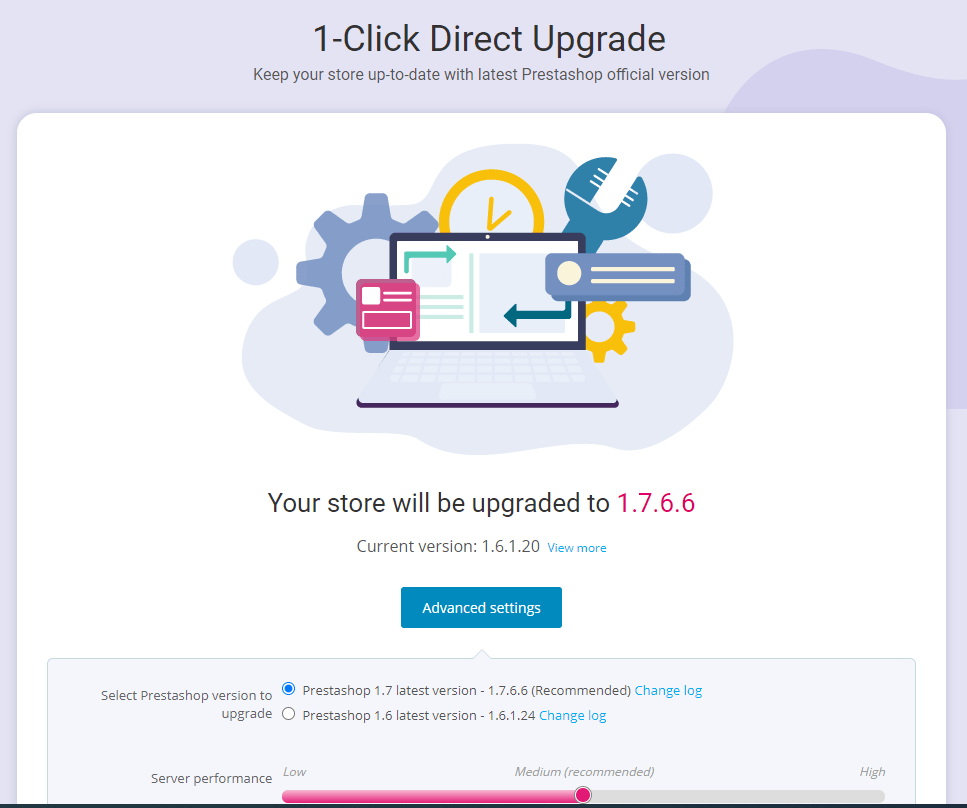
✓ Click “Advanced settings” button to open advanced settings options area.
✓ Select PrestaShop version to upgrade: 1-Click Direct Upgrade is able to
directly upgrade:
o PrestaShop 1.7 to latest version of 1.7.
o PrestaShop 1.6 to latest version of 1.7
o PrestaShop 1.6 to minor version of 1.6
o PrestaShop 1.5 to latest version of 1.7
o PrestaShop 1.5 to latest version of 1.6
o PrestaShop 1.5 to minor version of 1.5
✓ You can roll back (restore) to previous PrestaShop version at anytime using
Rollback URL and rollback key. Please save this information to use later.
✓ Click on “Yes, I have made a full backup manually” checkbox.
✓ Click “Start upgrade” button.
Step 3: Please wait for the upgrade process to complete.
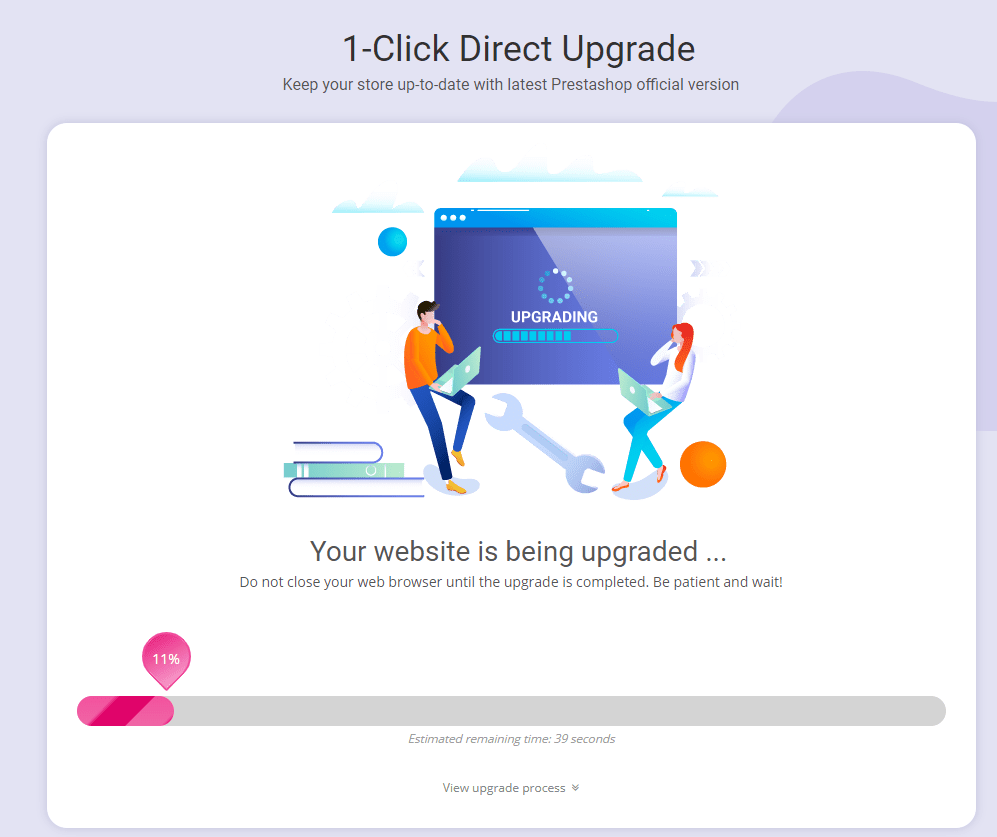
Read “To Do list” and make sure you check every thing. Now you can enjoy your upgraded PrestaShop 1.7 online store!
This module is developed by Preta Hero – team of professional PrestaShop developers in Viet Nam!
 Prestashop modules & Shopify apps